
Install in Claude Desktop
Step-by-step: add the levirge/search plugin marketplace in Claude Desktop, sync it, and install the Search plugin — no terminal needed.
Early access — capacity is limited and workspaces are set up in order of request. Installing now is fine: the plugin connects the moment your workspace is active.
Claude Desktop installs Search as a plugin from the levirge/search GitHub
marketplace. Five steps, all in the app — no terminal. Search is in early
access with limited capacity; workspaces are set up in order of request.
1 · Open the plugin marketplace
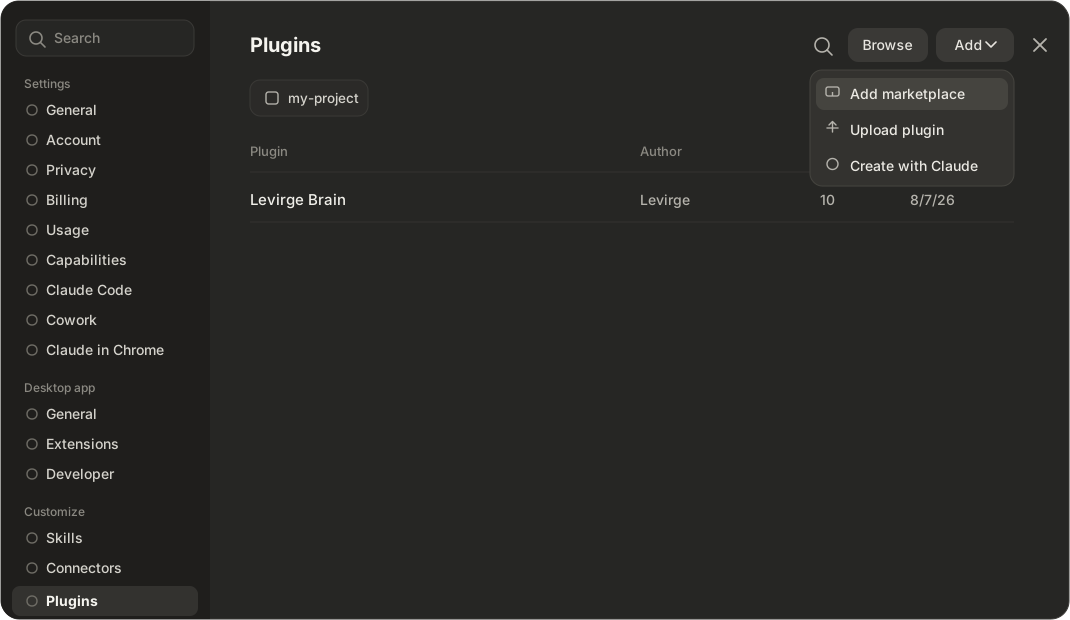
In Claude Desktop, open Settings → Plugins, then click Add → Add marketplace.
2 · Choose the marketplace source
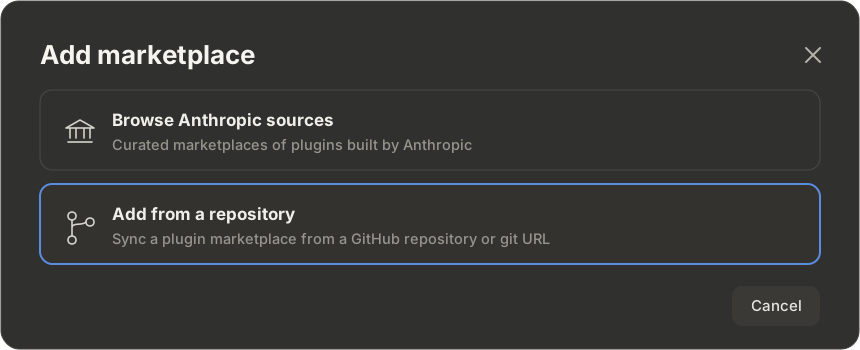
Pick Add from a repository — the Levirge marketplace syncs straight from GitHub.
3 · Sync the marketplace
Paste the repo into the URL field and click Sync:
levirge/search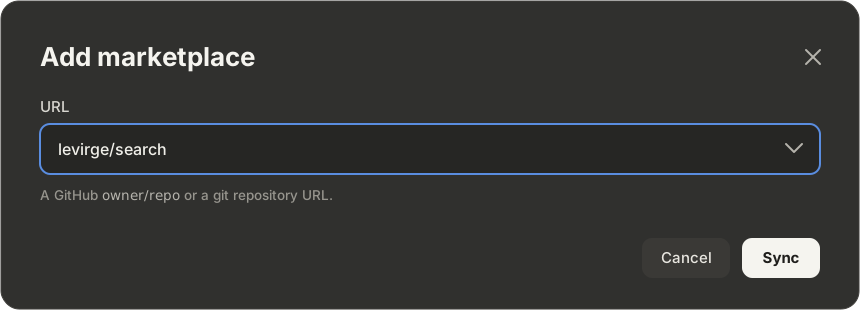
4 · Enable the plugin
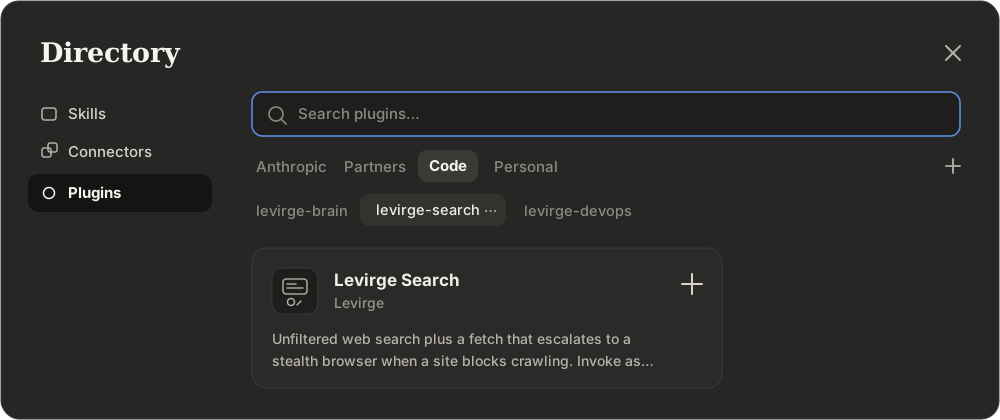
Click Browse to open the Directory, pick the levirge-search marketplace under Code, and click + on Levirge Search.
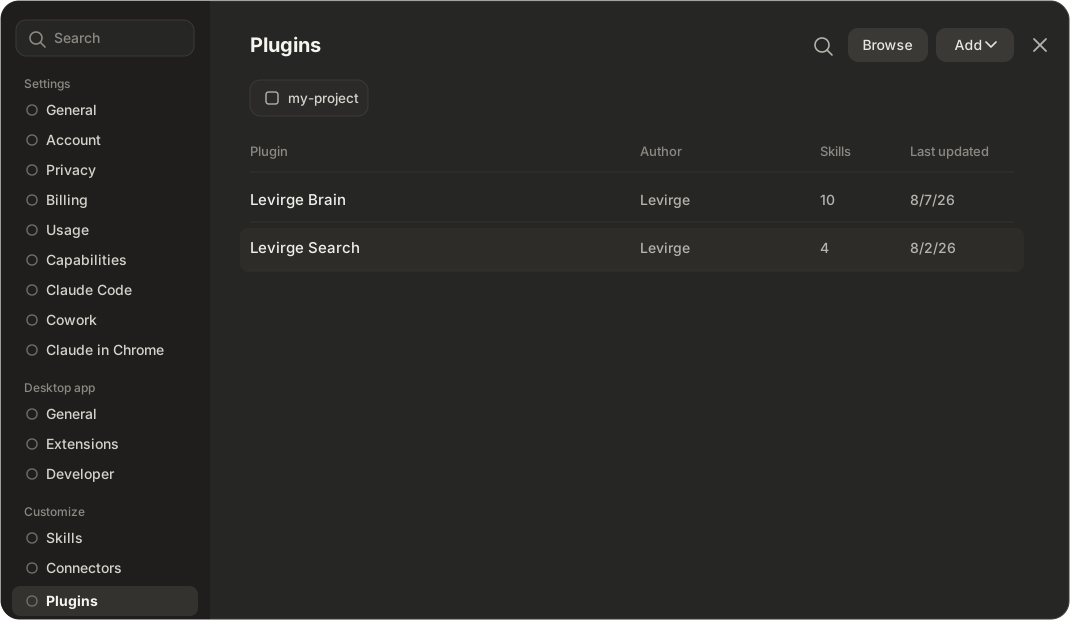
5 · Done — Search is installed
Levirge Search now sits in your plugin list. It connects the MCP server and
adds the /search:* commands; sign in with OAuth on first use — workspace
tokens remain as a fallback.
Other clients
Claude Code, Codex, OpenCode and pi.dev install from the Search page. No account yet? Register your interest or talk to us.