Levirge Search · install
Install in Cline
Add Levirge Search to the Cline VS Code extension from its Remote Servers tab.
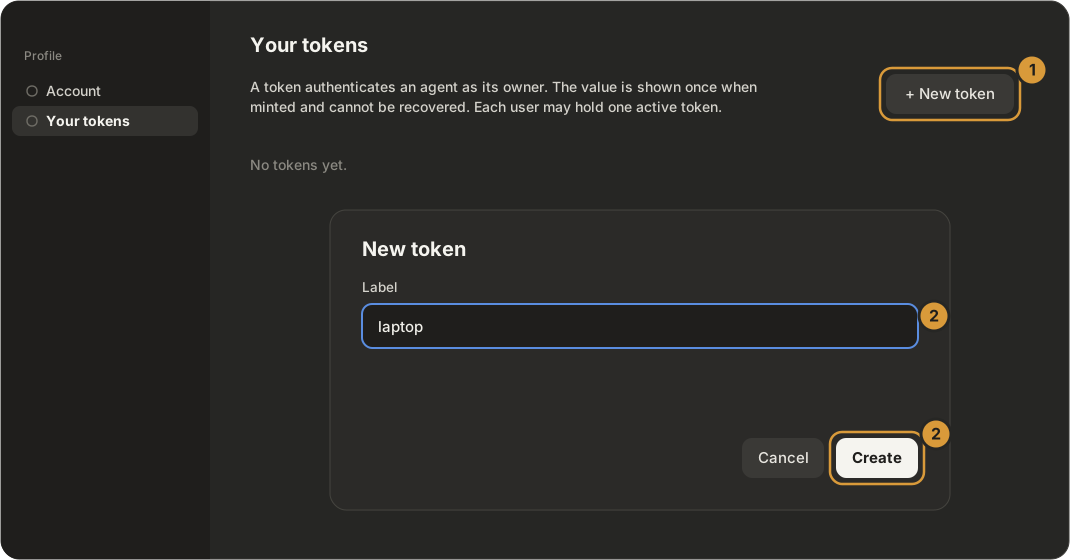
Cline connects with a token — mint one first (below).
1 · Open Remote Servers
Click the MCP Servers icon in Cline's top toolbar and open the Remote Servers tab.
2 · Fill in the form
Name it search, paste the URL, choose Streamable HTTP, and click Add Server.
https://search.levirge.com/mcp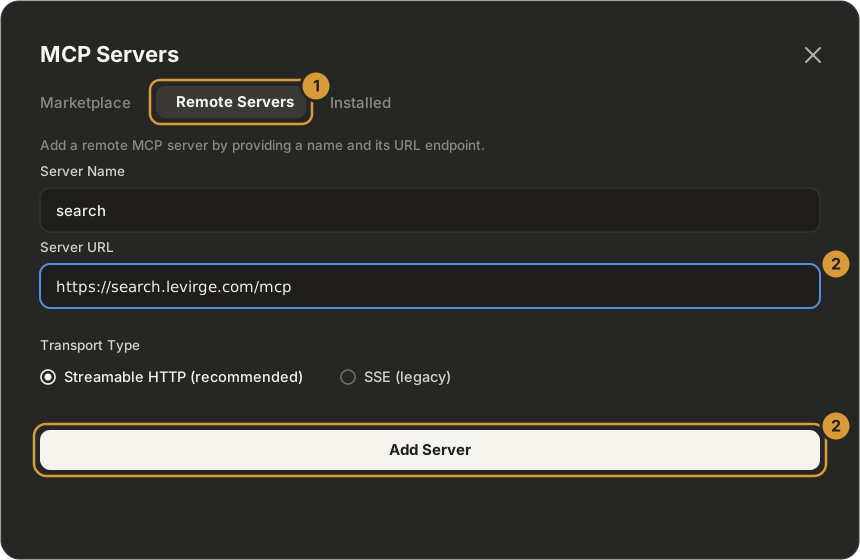
3 · Add your token
Open Edit Configuration and add the header:
{
  "mcpServers": {
    "search": {
      "type": "streamableHttp",
      "url": "https://search.levirge.com/mcp",
      "headers": { "Authorization": "Bearer <your-token>" }
    }
  }
}
Then ask it a research question, or verify with a read-only call —
stealth_list returns the stealth-domain registry.
Need a token instead?
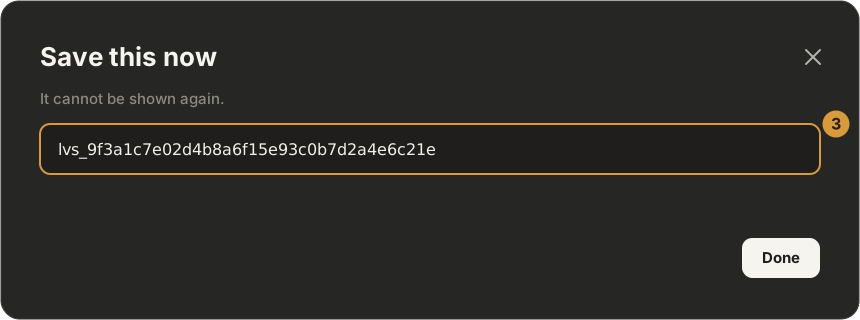
Sign-in is the default. If your client cannot open a browser, mint a token on Profile → Your tokens — click + New token, label it, Create, and copy the value straight away (it is shown once).