Install in Devin Desktop
Add Levirge Search to Devin Desktop (formerly Windsurf) via Cascade as a remote MCP server via mcp_config.json.
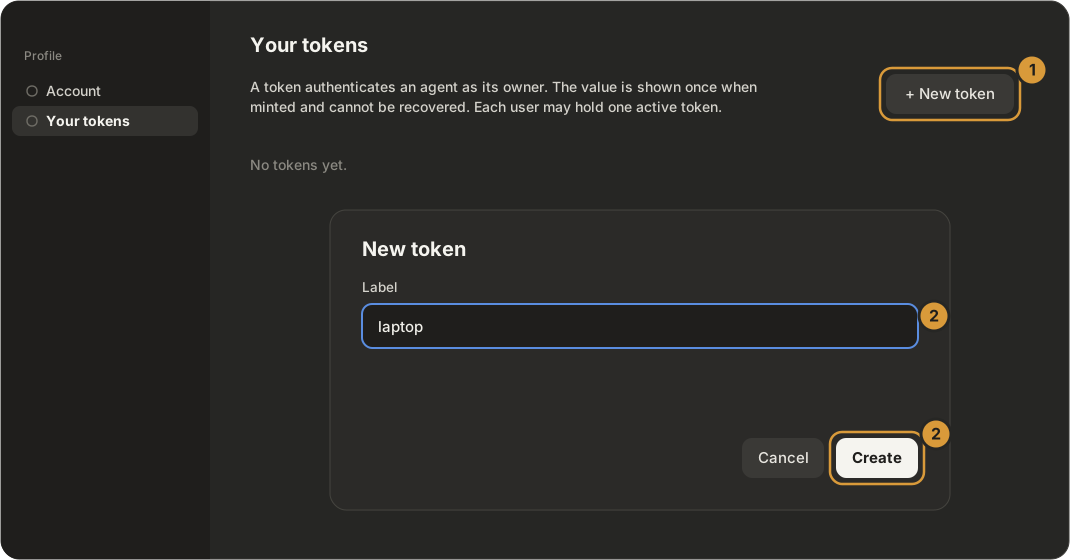
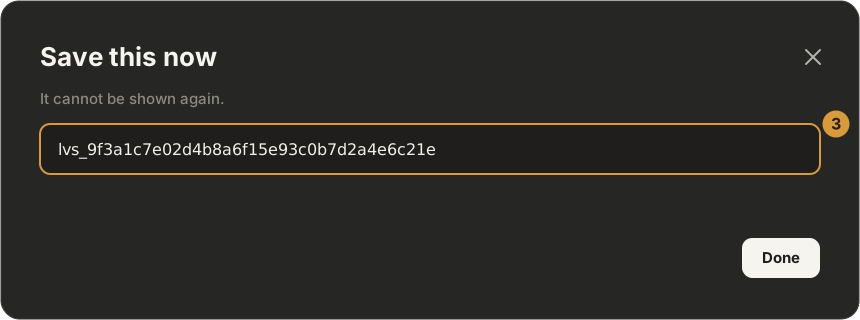
Devin Desktop (formerly Windsurf) connects with a token — mint one first (below).
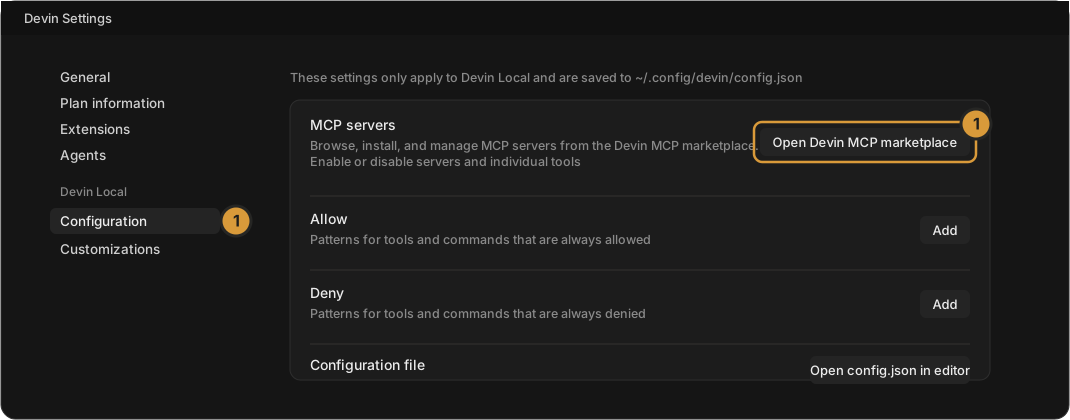
1 · Open the MCP marketplace
Open Devin Settings (⌘,) → Devin Local → Configuration and click
Open Devin MCP marketplace.
2 · Add a custom MCP
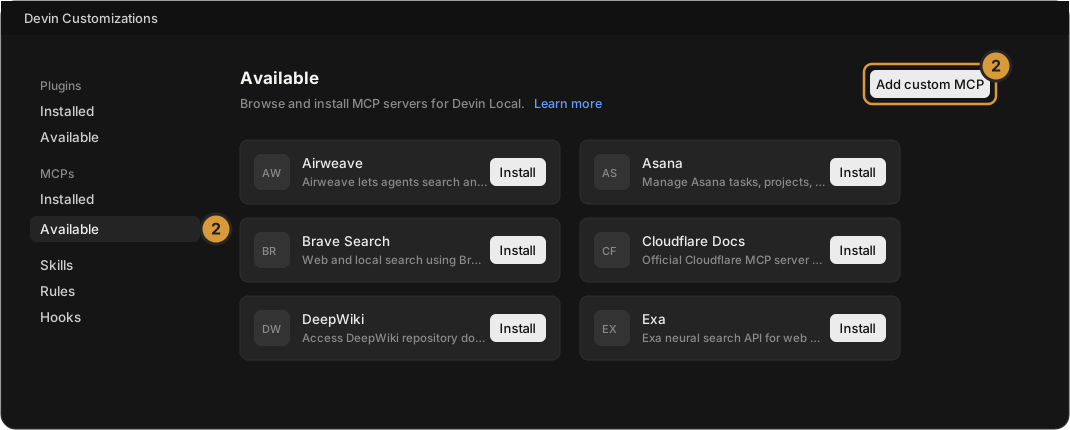
On the MCPs → Available page click Add custom MCP (top right). It opens
mcp_config.json.
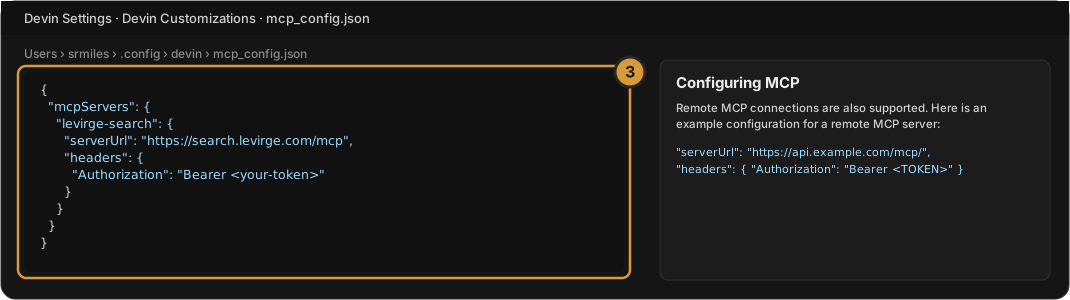
3 · Paste the server
Paste this into the file, with your token, and save:
{
  "mcpServers": {
    "levirge-search": {
      "serverUrl": "https://search.levirge.com/mcp",
      "headers": { "Authorization": "Bearer <your-token>" }
    }
  }
}
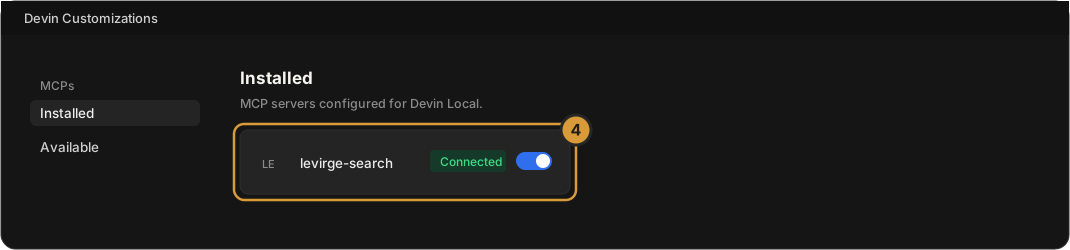
4 · Check it is connected
Open MCPs → Installed. levirge-search shows Connected with its switch on.
Then ask it a research question, or verify with a read-only call —
stealth_list returns the stealth-domain registry.
Need a token instead?
Sign-in is the default. If your client cannot open a browser, mint a token on Profile → Your tokens — click + New token, label it, Create, and copy the value straight away (it is shown once).