
Install in ChatGPT
Add Levirge Search to the ChatGPT desktop app as a plugin, or to chatgpt.com as a Developer-mode app.
Two different products share the name. ChatGPT desktop app (the coding-agent app) installs Search as a plugin; chatgpt.com in the browser adds it as a Developer-mode app.
ChatGPT desktop app
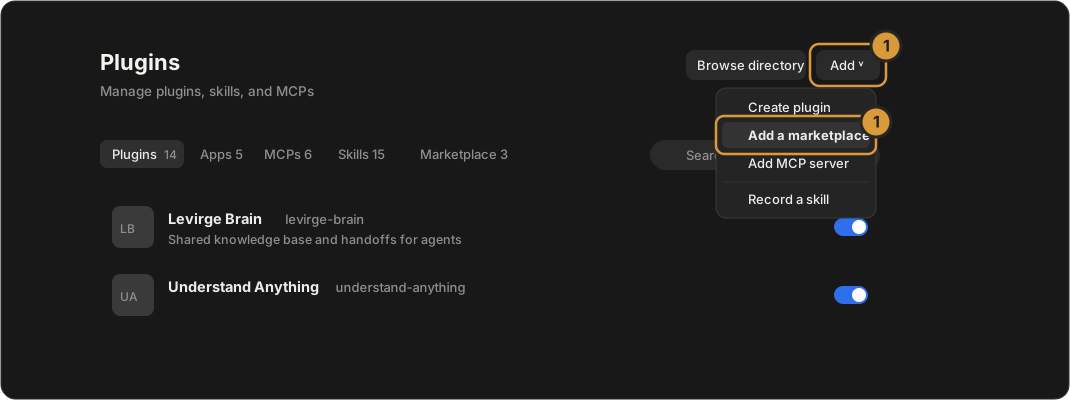
1 · Add the marketplace
Open Settings (⌘,) → Integrations → Plugins, click Add ˅ and
choose Add a marketplace.
2 · Enter the source
Type the source, leave Git ref and Sparse paths as they are, and click Add marketplace:
levirge/search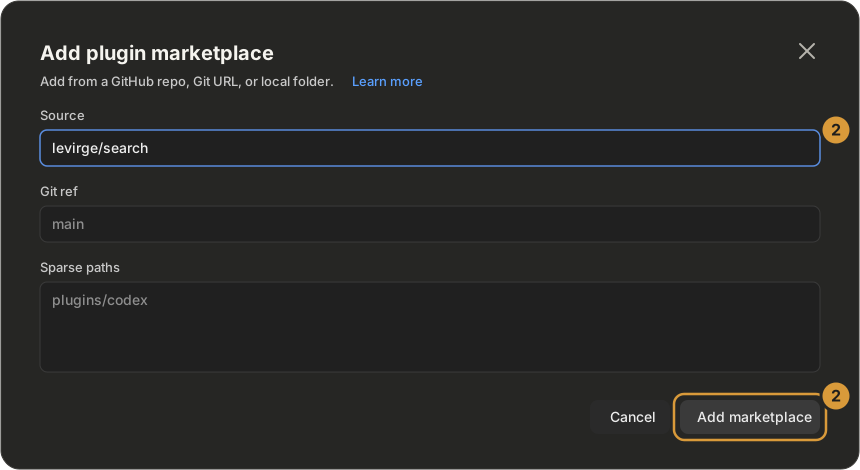
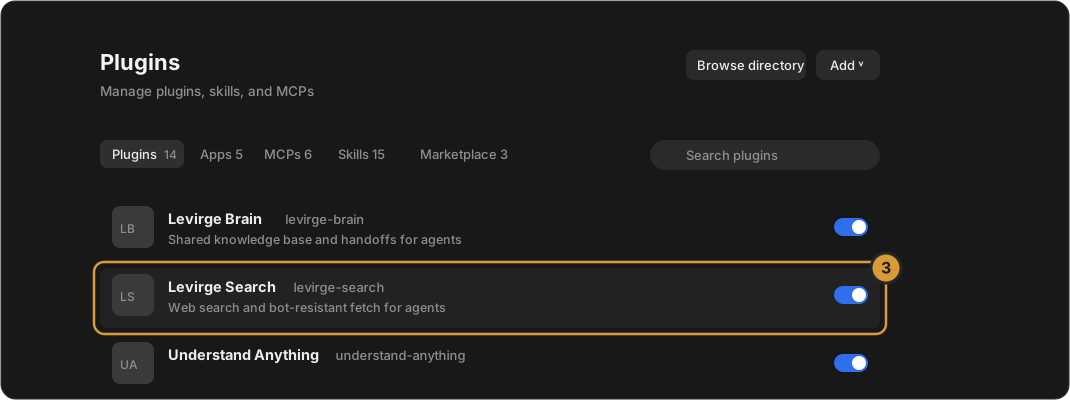
3 · Switch it on
Levirge Search appears in the Plugins list — make sure its switch is on. The first time a chat uses it, sign in when the browser opens.
chatgpt.com in the browser
Needs a Plus, Pro, Business, Enterprise or Edu plan.
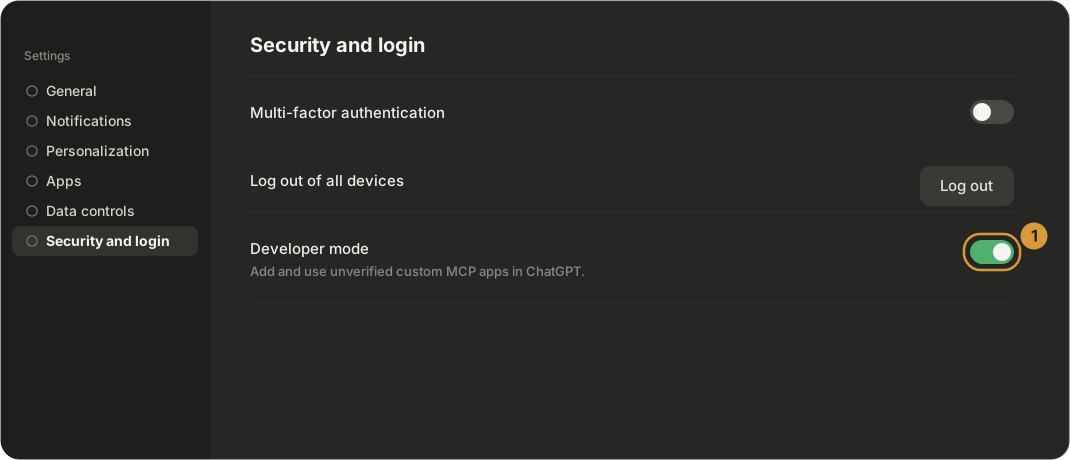
1 · Switch on Developer mode
Open Settings → Security and login and turn on Developer mode.
2 · Create the app
In the apps section of Settings click + Create. Name it Levirge Search, paste the server URL, choose OAuth, and click Create.
https://search.levirge.com/mcp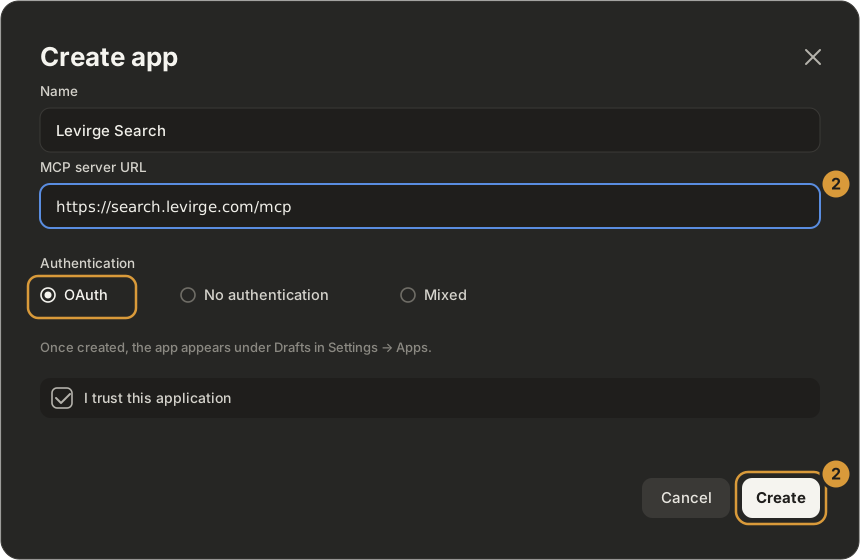
3 · Connect and use it
Click Connect and sign in when the browser opens. In a chat, open the + menu, choose Developer mode, and tick Levirge Search.
Then ask it a research question, or verify with a read-only call —
stealth_list returns the stealth-domain registry.